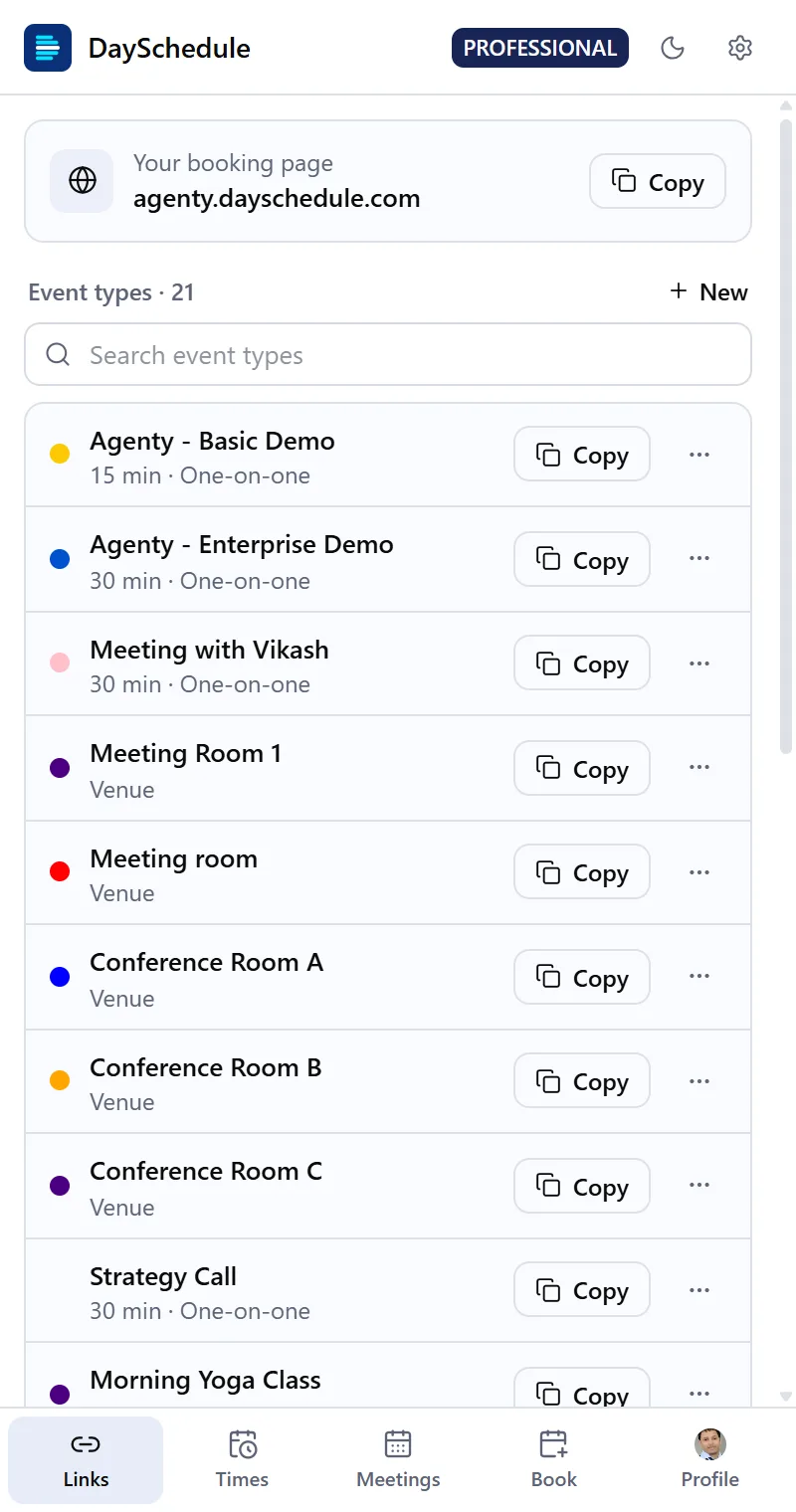
The DaySchedule extension puts your scheduling tools in the Chrome side panel, next to the email or message you're writing. Copy or insert a booking link, send a few open times, check your next meeting and book someone in without switching to the DaySchedule dashboard.
It works on any website, so you can use it in Gmail, Outlook on the web, LinkedIn messages, HubSpot, Salesforce or a support desk. The extension is free and works on every DaySchedule plan. Short links are the only feature that needs a paid plan.
Install the extension
- Open DaySchedule - Meeting Scheduler in the Chrome Web Store and click Add to Chrome.
- Click Add extension to confirm.
- Click the puzzle icon in the Chrome toolbar and pin DaySchedule, so its icon stays next to the address bar.
The extension needs Chrome 116 or later.
Sign in
Click the DaySchedule icon in the toolbar to open the side panel, then click Continue with DaySchedule. A sign in window opens on dayschedule.com. Sign in with Google, Apple or email, then click Allow access on the consent screen.
If you're already signed in to app.dayschedule.com in the same browser, you only see the consent screen. Your password is entered on dayschedule.com and never passes through the extension.
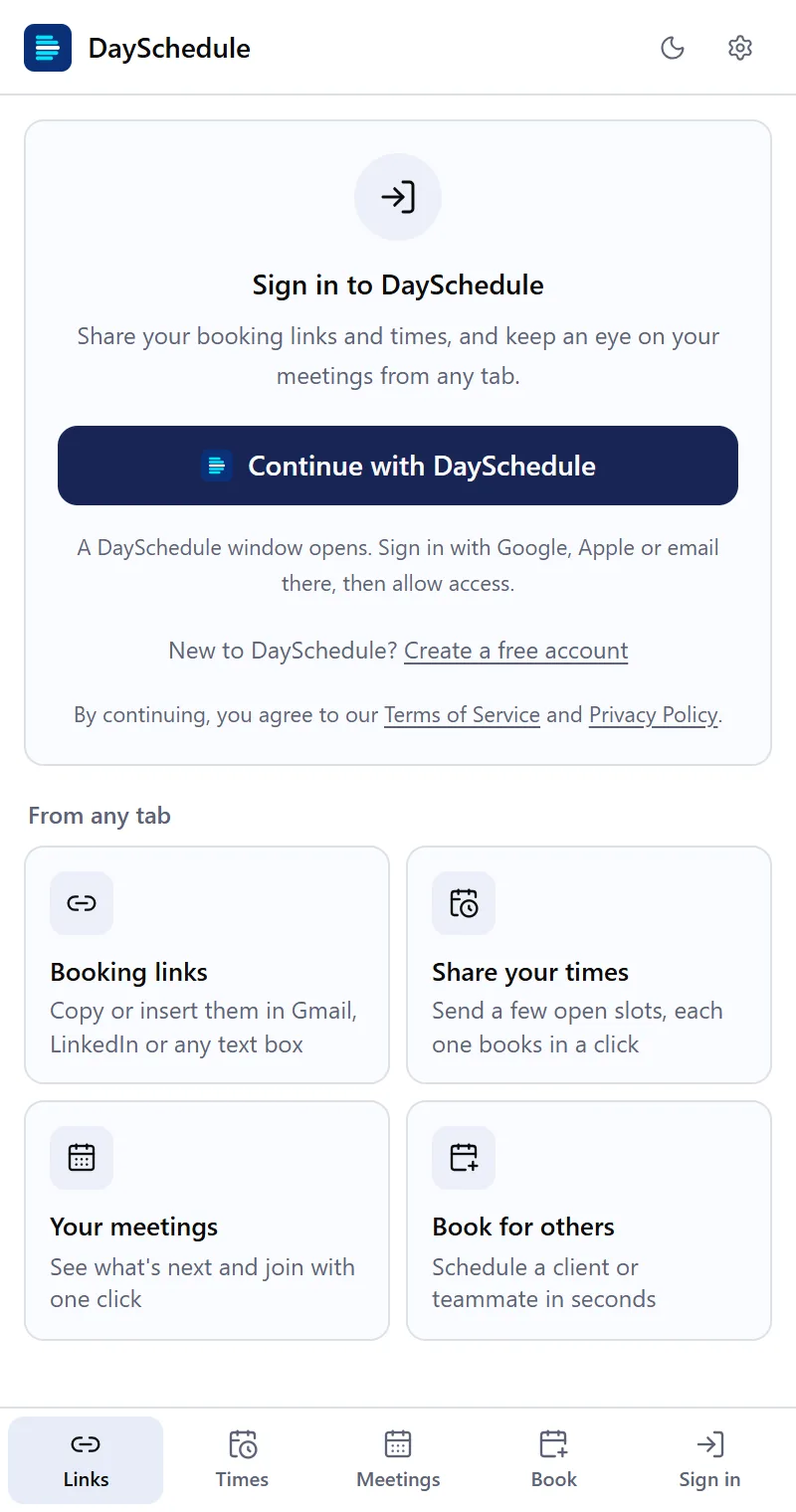
You stay signed in as long as you open the panel at least once every 90 days. Don't have an account yet? Sign up for free and create an event type first, since the extension uses the event types, availability and calendars from your account.
What's in the side panel
The tabs at the bottom of the panel match the things you do most while writing emails:
| Tab | What it does | Guide |
|---|---|---|
| Links | Your booking page and every event type, with Copy, prefill and short link options | Insert your booking link |
| Times | Pick free slots and paste them into an email, each time books in one click | Share available times in an email |
| Meetings | Upcoming meetings and the past 30 days, with a Join button for video calls | See and join your meetings |
| Book | Book a meeting for a client or teammate on a free slot | Book a meeting for someone |
| Profile | Your plan, theme and links to settings in the app |
Availability, calendar connections, booking pages, billing and team settings stay in the dashboard. The Profile tab and the gear icon open them on app.dayschedule.com in a new tab.
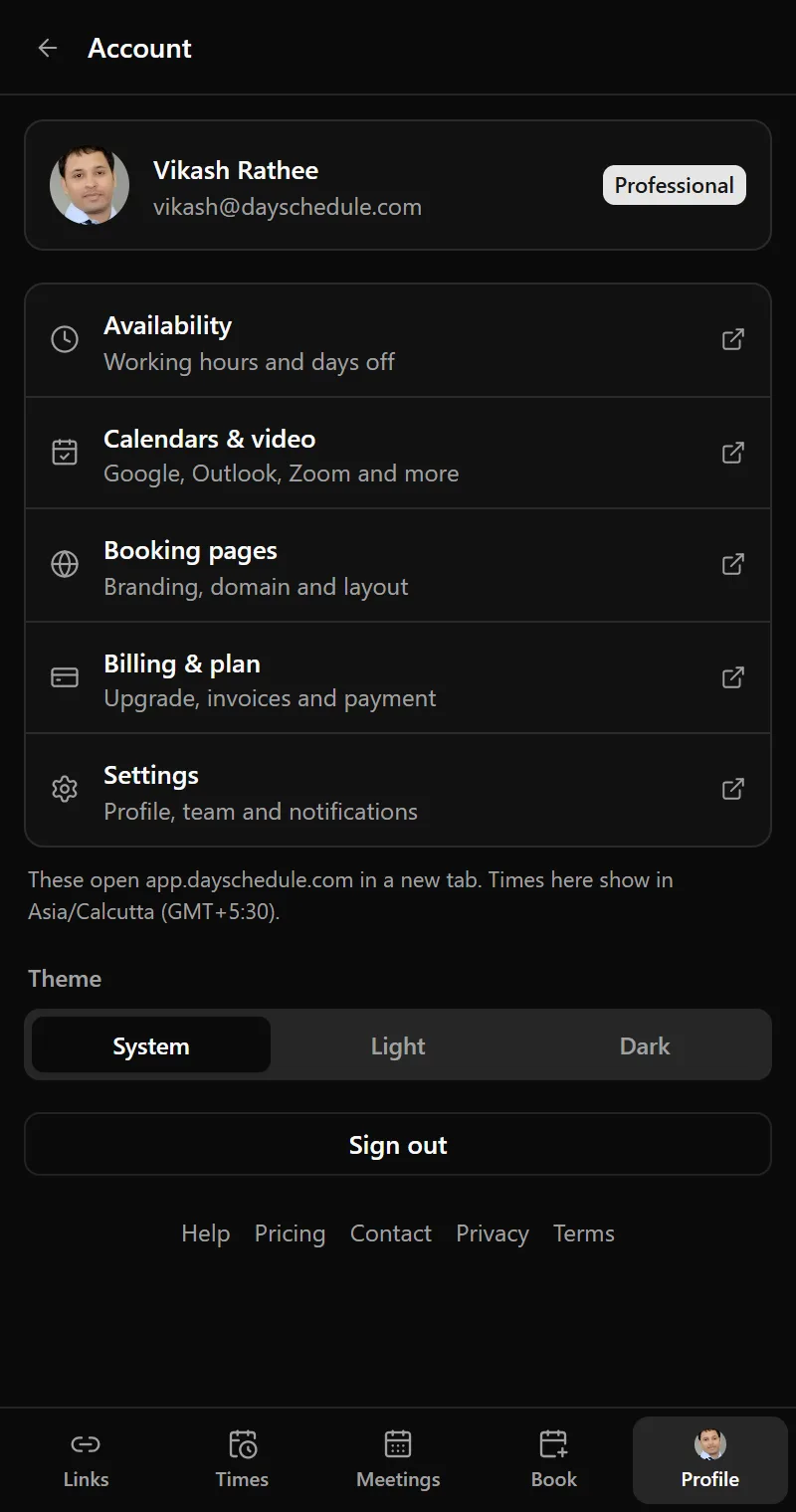
To switch between light and dark mode, click the moon or sun icon at the top of the Links tab, or pick System, Light or Dark on the Profile tab.
Right click menu
You don't have to open the panel first. Right click in any text box and choose DaySchedule to see these options:
- Insert link: followed by the event name, for up to 10 of your event types
- All booking links…, which opens the Links tab ready to insert
- Share available times…, which opens the Times tab ready to insert
Select a name or email on a page and right click to see Book a meeting with "…", which opens the Book tab with that person filled in.
Privacy and permissions
The extension doesn't read the pages you visit or your browsing history. It runs a script in a page only after you right click and choose a DaySchedule action, to insert a link or times at the cursor in that field.
Chrome asks for these permissions when you install it:
| Permission | Why the extension needs it |
|---|---|
| activeTab and scripting | Insert a link or times into the field you right clicked, only in that tab |
| storage | Keep you signed in and remember your theme and last used event type |
| contextMenus | Add the DaySchedule options to the right click menu |
| identity | Open the DaySchedule sign in window |
| sidePanel | Show the extension in the Chrome side panel |
| api.dayschedule.com | Load your event types, free times and meetings |
To sign out, open the Profile tab and click Sign out. You can also disconnect the extension from your account in the dashboard: open Settings, then Developers, select the Connected Apps tab and click Disconnect next to the extension.
Troubleshooting
The side panel doesn't open. Check that Chrome is version 116 or later at chrome://settings/help, then click the DaySchedule icon again.
No event types show up. The Links tab lists the event types of the account you signed in with. Create one under Resources in the dashboard, then click Links again.
Insert does nothing. Click into the text box first, then right click inside it. If the panel says it couldn't reach the field, use Copy and paste the link or times yourself. Some editors, like Google Docs, don't accept inserted text.
Times look wrong. The extension shows free slots from your availability schedule and connected calendars. If a slot you expect is missing, see why no time slots are available.