
An API key lets your own code, or an AI assistant, work with your DaySchedule account: list and create bookings, check free slots, manage events, schedules and pages. The same key works for the REST API and the MCP server.
Create an API key
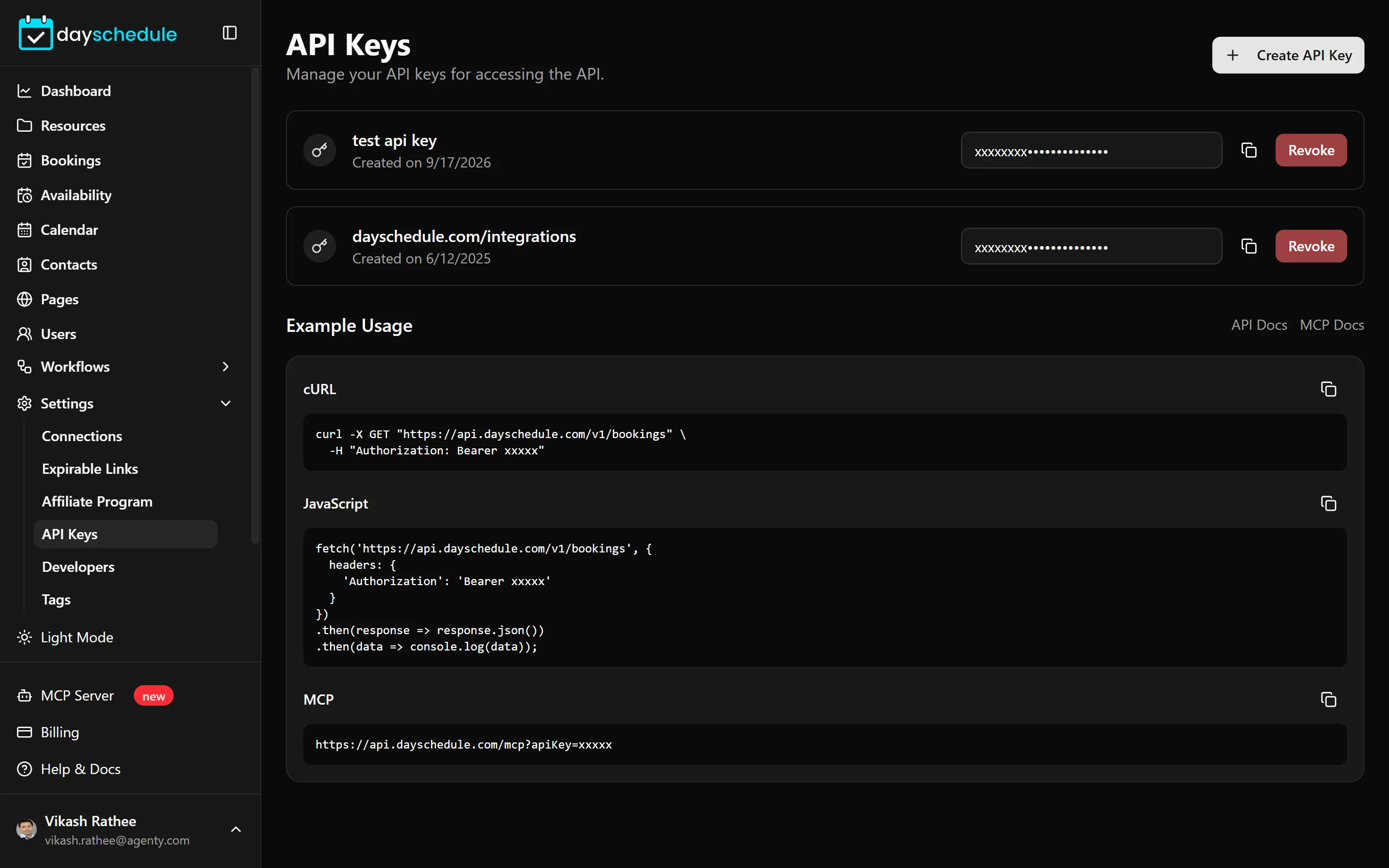
- Open Settings, then API Keys.
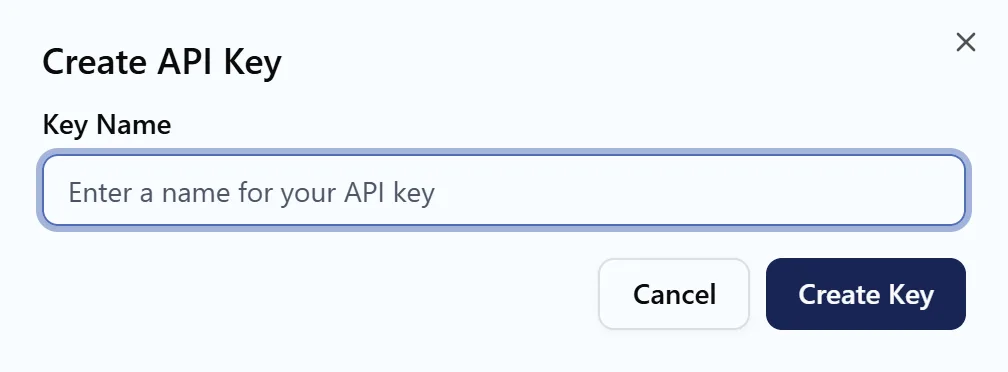
- Click Create API Key.
- Enter a Key Name that says where it's used, such as "Website booking form" or "Claude Desktop".
- Create the key and copy it.
Treat the key like a password. Anyone who has it can read and change your bookings. Keep it in a server-side environment variable, never in browser JavaScript, a mobile app or a public repository.
API access is part of the paid plans. On the free plan, the page shows "Upgrade to Access API Keys". Users need the Api Keys permission to see this page. See roles and permissions.
Call the REST API
Send the key as a Bearer token. This request lists your bookings:
curl -X GET "https://api.dayschedule.com/v1/bookings" \
  -H "Authorization: Bearer YOUR_API_KEY"
The same request in JavaScript:
const response = await fetch('https://api.dayschedule.com/v1/bookings', {
  headers: { Authorization: `Bearer ${process.env.DAYSCHEDULE_API_KEY}` },
});
const bookings = await response.json();
Example Usage on the API Keys page shows these snippets with your key filled in, with buttons to copy them. The API reference documents every endpoint: Resources, Bookings, Invitees, Schedules and Pages.
Connect an AI assistant with MCP
The DaySchedule MCP server lets assistants such as Claude, ChatGPT and Cursor find free slots, book, reschedule and cancel appointments. Add this URL to your MCP client, with your key in place of YOUR_API_KEY:
{
  "mcpServers": {
    "dayschedule": {
      "url": "https://api.dayschedule.com/mcp?apiKey=YOUR_API_KEY"
    }
  }
}
The URL contains your key, so keep it private. Clients that support OAuth, like Claude and ChatGPT, can connect to https://api.dayschedule.com/mcp and sign in with your DaySchedule account instead of using a key. Apps connected that way are listed under Settings, then Developers. See OAuth apps and connected apps.
See AI appointment scheduling for example prompts by industry. The MCP server guide lists every tool, and SKILL.md describes the API for AI agents.
Revoke a key
Click Revoke next to a key to stop it working immediately, for example when a developer leaves or a key may have leaked. Create a new key and update the places that used the old one. API requests show up in the audit logs.