
A booking page is your public scheduling website, such as acme.dayschedule.com. It lists the events, services and venues people can book and carries your logo, colors and description. You can have several pages, for example one per brand, location or team, each with its own resources.
Create a booking page
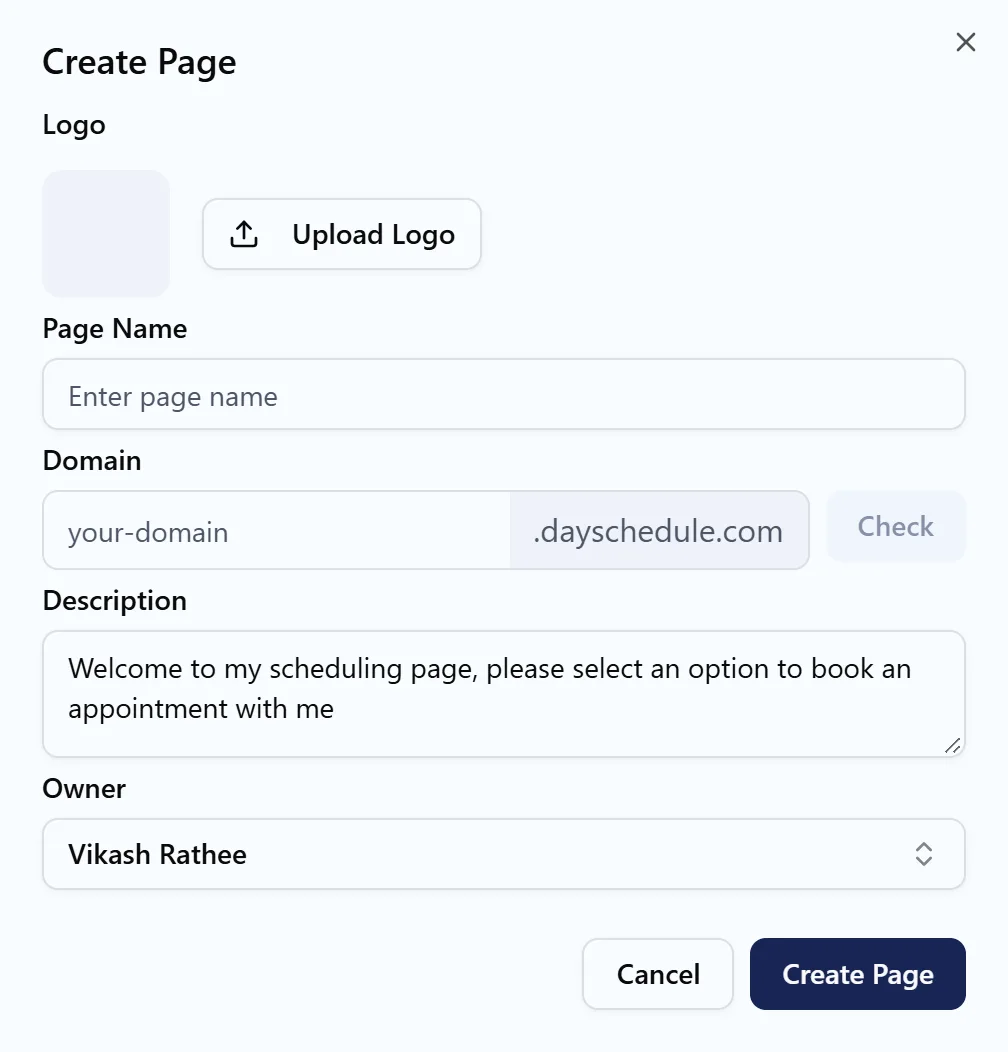
- Open Pages and click Create Page.
- Enter the Page Name, such as "Acme Consulting".
- Choose the Domain, the part before
.dayschedule.com. DaySchedule tells you whether it's available. - Write a short Description that greets visitors, such as "Pick a time below to book a call with our team."
- Choose the Owner if you manage pages for your team, and save.
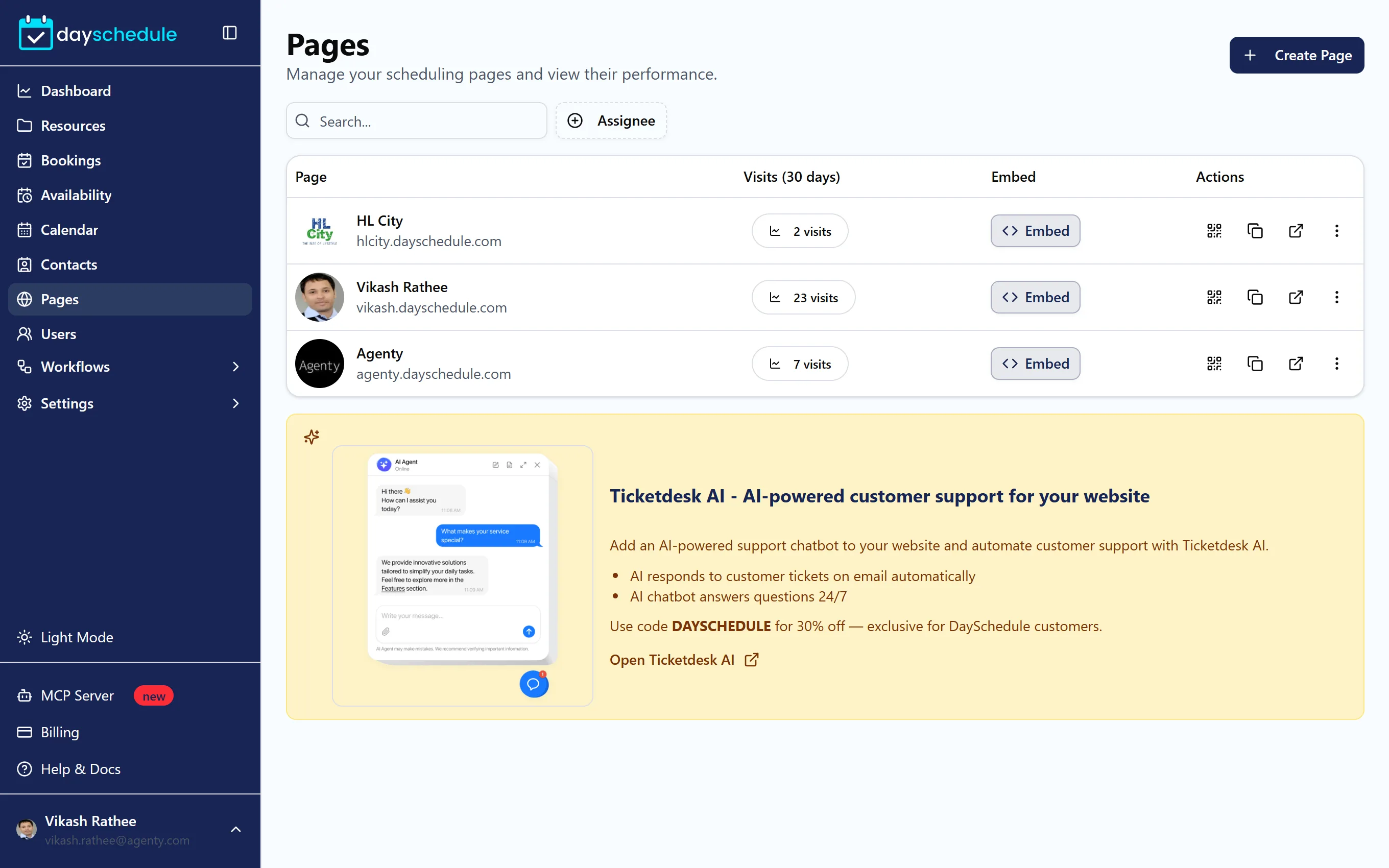
The Pages list shows each page with its Visits (30 days), an Embed button and Edit and Delete actions. The free plan includes one page.
Change the look of the page
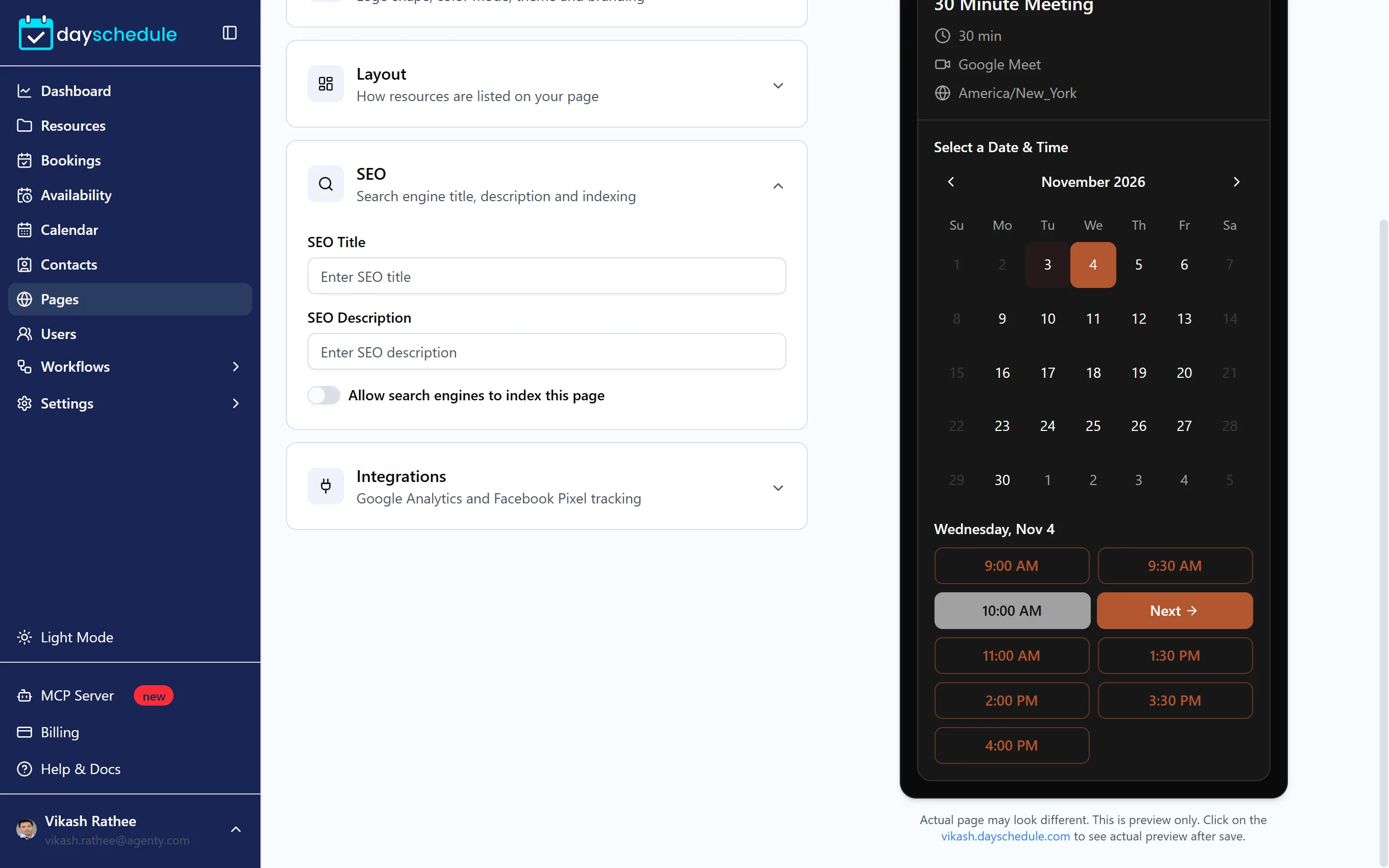
Click Edit on a page. The settings are grouped into five sections, with a live preview of the booking page next to them.
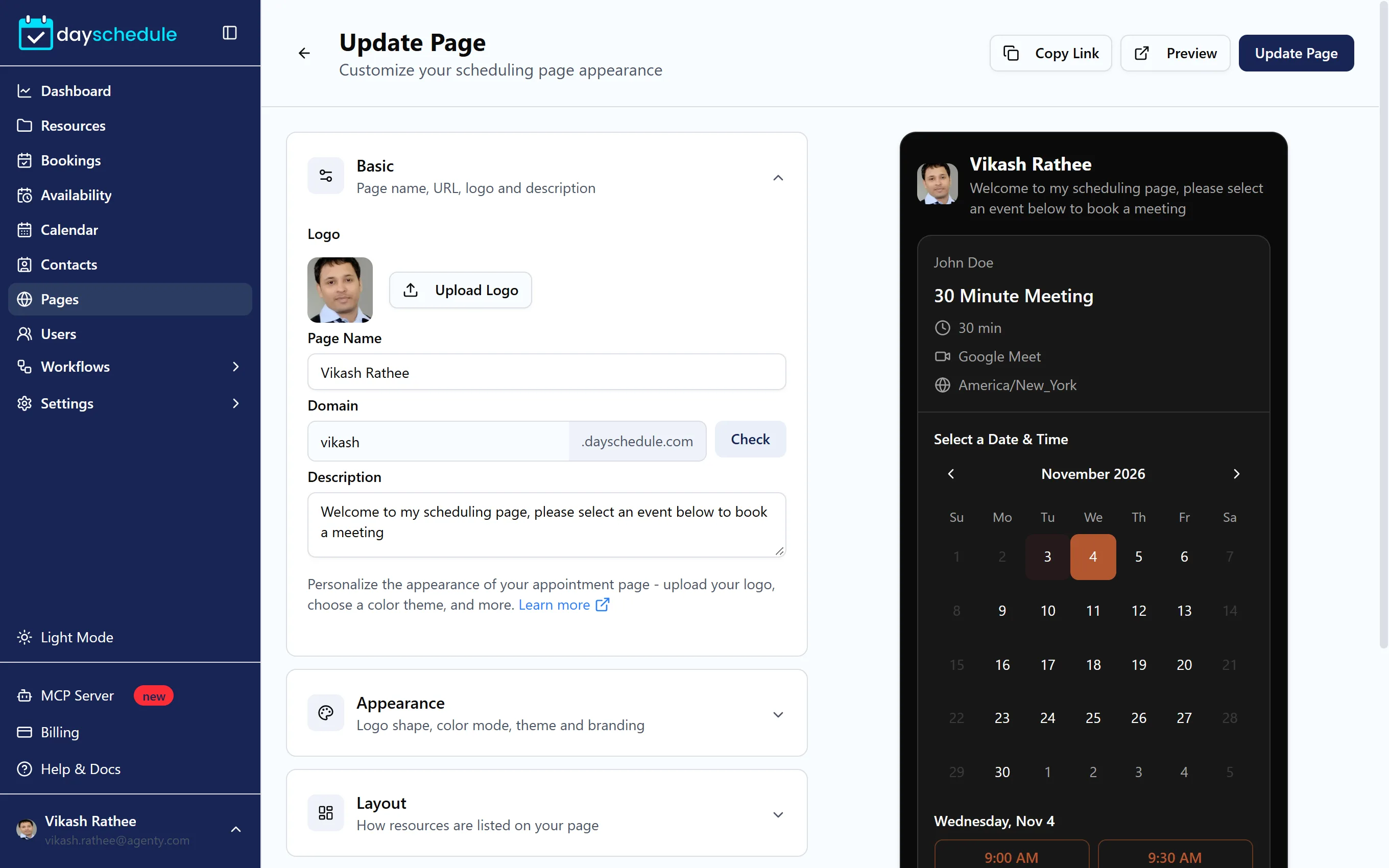
Basic has the page name, address, Logo and description.
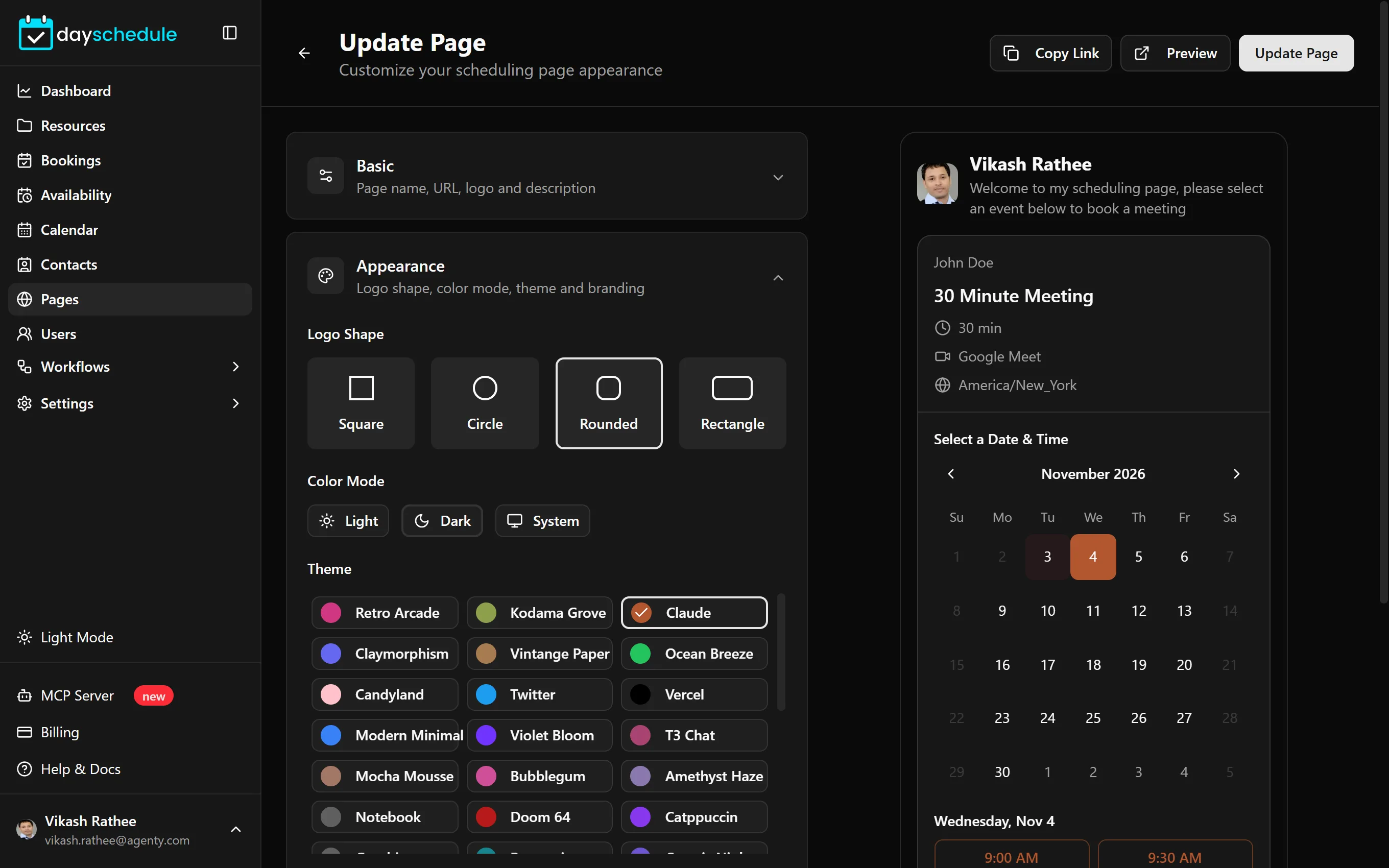
Appearance controls the branding:
- Logo Shape: Square, Circle, Rounded or Rectangle. Use Rectangle for a wide logo with the company name in it.
- Color Mode: Light, Dark or System, which follows the visitor's device. See switch the color mode.
- Theme: more than 40 color and font themes, from minimal to bold. See booking page themes and custom themes and layouts.
- Remove DaySchedule branding hides the "Powered by DaySchedule" footer. See branding.
Layout sets the Default View of your resources, Grid or List, and whether to Show resource type, such as event, venue or service, on each one. To change the order of resources, use Rearrange and sort on the Resources page.
Click Update Page to publish your changes, then Preview to check the live page.
Set the SEO title and description
The SEO section sets the SEO Title and SEO Description that search engines and link previews show. Turn off Allow search engines to index this page for an internal or invite-only page.
Track visits with Google Analytics or Meta Pixel
Under Integrations, paste your Google Analytics ID, such as G-XXXXXXXXXX, or your Facebook Pixel ID. Visits and bookings on the page are then tracked in your own analytics, so you can measure campaigns and build retargeting audiences. See install Meta Pixel and conversion tracking. DaySchedule's own visit statistics are on the dashboard.