
Connect DaySchedule to AI assistants and agents with the Model Context Protocol (MCP). The DaySchedule MCP server gives AI tools secure, direct access to appointment booking, availability, schedules, booking pages, attendees, and event types.
Use it to build an AI appointment booking assistant, automate meeting scheduling, find open time slots, create and reschedule appointments, manage cancellations, and coordinate attendees through natural-language prompts. Whether you are creating an AI scheduling agent, an automated booking workflow, or a conversational appointment system, DaySchedule MCP provides the tools needed to manage the complete booking lifecycle.
What is DaySchedule MCP?
The Model Context Protocol lets compatible AI clients call DaySchedule tools on your behalf. After you connect the MCP server, your AI assistant can read availability and booking information or perform actions such as creating a booking, rescheduling an appointment, and updating a schedule.
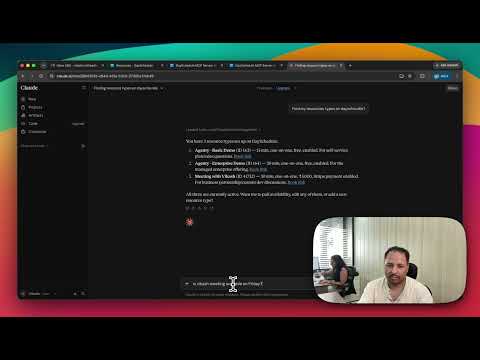
The AI client only receives access through the DaySchedule API key included in your MCP connection URL. Treat this URL like a password and never share it publicly.
Prerequisites
Before connecting, you need:
- A DaySchedule account
- A DaySchedule API key (
Settings > API Keys) - An AI client that supports remote MCP servers
Connect the DaySchedule MCP Server
Use this remote MCP server URL, replacing xxxxx with your DaySchedule API key:
https://api.dayschedule.com/mcp?apiKey=xxxxx
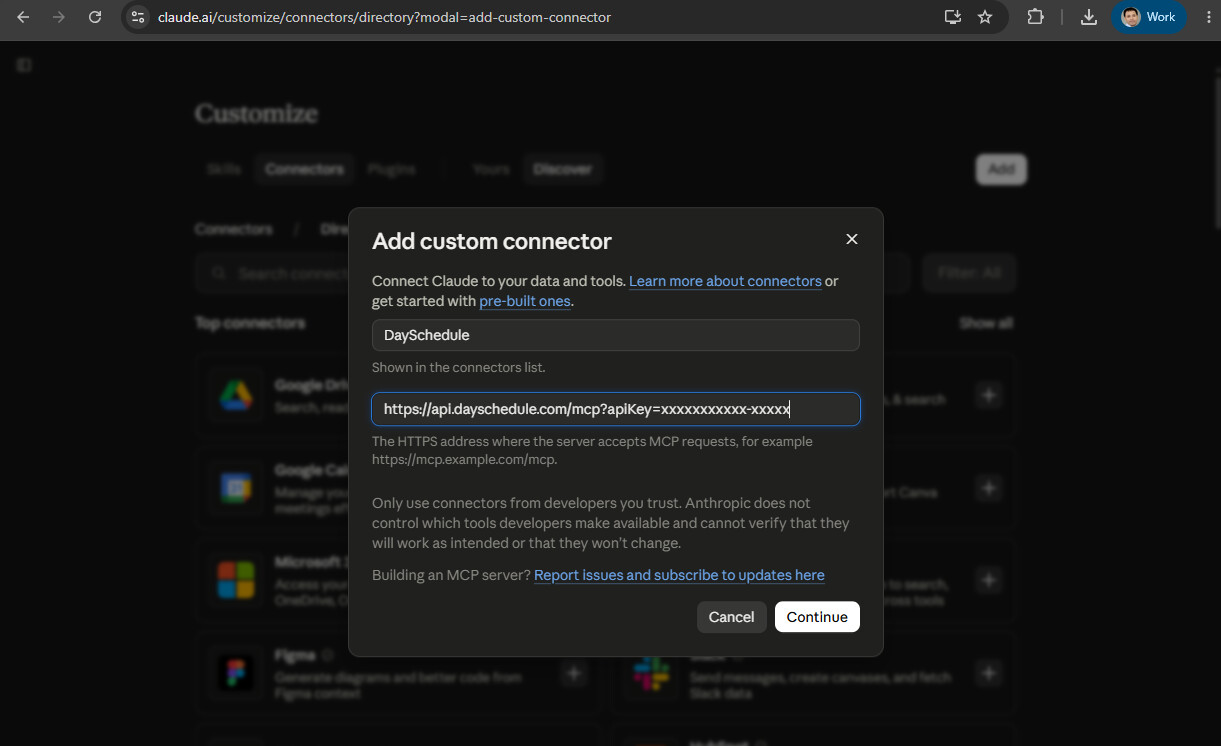
Connect from an AI client
If your AI client provides an Add connector or Add MCP server screen:
- Open the client’s MCP or connector settings.
- Add a new custom MCP server.
- Enter
DayScheduleas the name. - Paste the DaySchedule MCP URL with your API key.
- Save the connection and confirm that the DaySchedule tools are available.
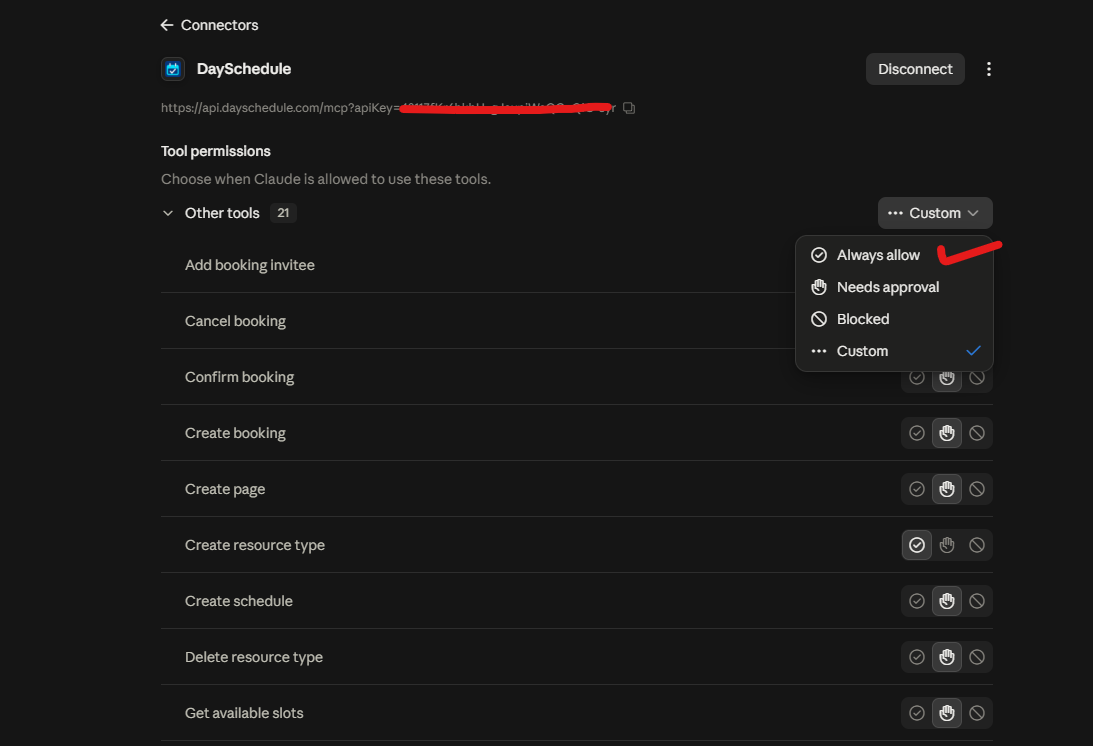
Once connected, change the permissions to “Always allow” or the AI assistant will ask for permissions on each step.
Connect with an MCP configuration file
For MCP clients such as Claude Desktop, Cursor, and VS Code that support an mcpServers configuration, add the following to your configuration:
{
  "mcpServers": {
    "dayschedule": {
      "url": "https://api.dayschedule.com/mcp?apiKey=xxxxx"
    }
  }
}
Replace xxxxx with your API key, save the file, and restart the AI client if required.
Security: Do not commit a configuration containing your real API key to source control, paste it into public conversations, or include it in screenshots.
Available tools
Resource types
Resource types represent bookable events such as one-to-one meetings, group events, round-robin events, and webinars.
| Tool | Description |
|---|---|
get_resource_types |
List available resource types, including events and webinars. |
get_resource_type |
Get the complete details of a resource type by its ID. |
create_resource_type |
Create a 1:1 event, group booking event, or round robin event or webinar with its booking configuration. |
update_resource_type |
Replace an existing resource type and its booking configuration using its ID and full resource object. |
delete_resource_type |
Delete a resource type by its ID. |
Schedules and availability
| Tool | Description |
|---|---|
get_schedules |
List all availability schedules in the connected account. |
get_schedule |
Get a schedule by its ID, including availability rules and time settings. |
create_schedule |
Create an availability schedule with a name, timezone, working hours, and availability rules. |
update_schedule |
Replace a schedule’s timezone, working hours, rules, and date-specific availability overrides. |
get_default_schedule |
Get the account’s default availability schedule. |
get_available_slots |
Find available booking times for a resource within a specified date and time range. |
Booking pages
| Tool | Description |
|---|---|
get_pages |
List booking pages in the connected account. |
create_page |
Create a booking page for an organization, group, or business. |
Bookings and attendees
| Tool | Description |
|---|---|
get_bookings |
List upcoming bookings with supported pagination. |
get_booking |
Get complete booking details by booking ID. |
create_booking |
Book a resource for a requested date and time with attendee and booking details. |
reschedule_booking |
Move an existing booking to a new available date or time. |
cancel_booking |
Cancel an existing booking and include a reason when supported. |
confirm_booking |
Confirm a pending booking by its ID. |
mark_booking_noshow |
Mark an attendee or booking as a no-show after the appointment time. |
add_booking_invitee |
Add an invitee or attendee to an existing booking. |
Example prompts
Once connected, ask your AI assistant in natural language. It may request missing details or confirmation before making a change.
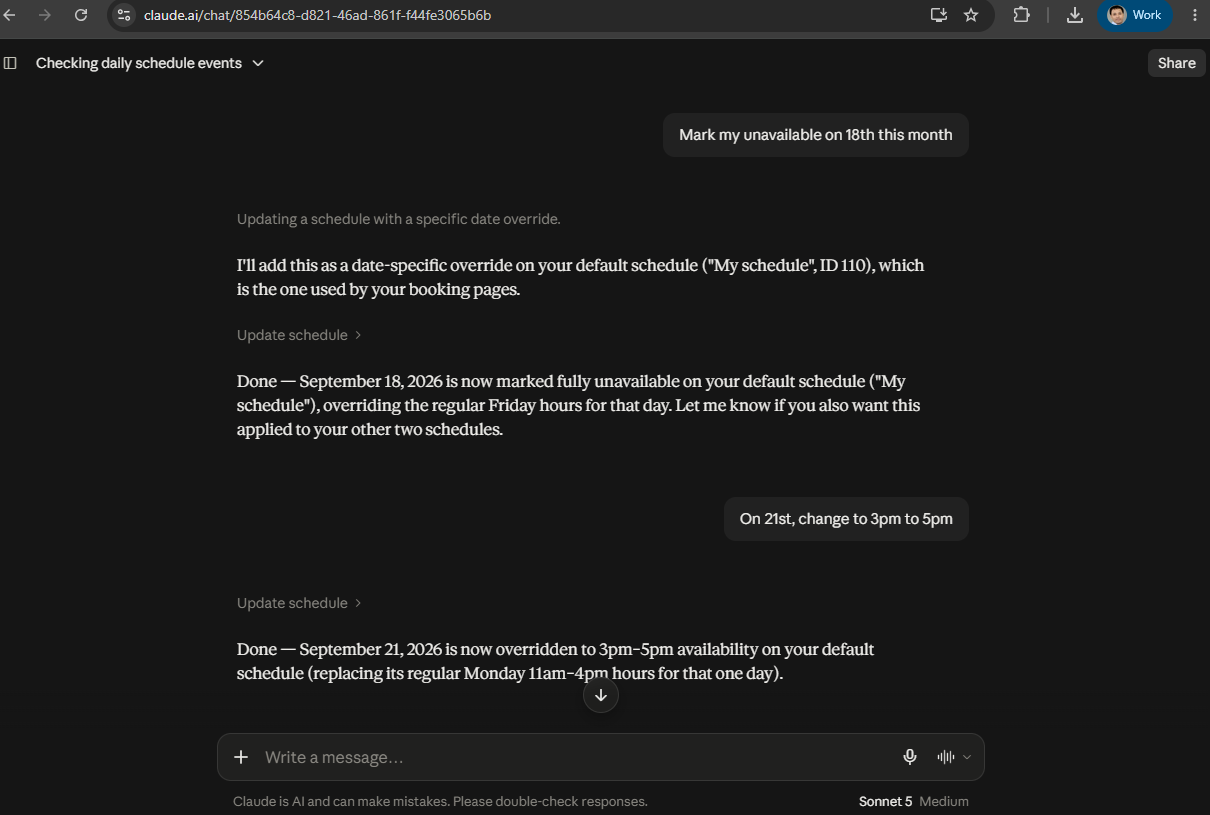
Find availability
Show me the available 30-minute slots for Vikash's meeting next Tuesday between 9:00 AM and 5:00 PM.
Check my schedule and mark me unavailable on Christmas holiday.
Create and manage appointments
Book the product demo for Priya Sharma at 10:30 AM on September 22, 2026. Her email is priya@example.com.
Show my upcoming bookings for this week
Reschedule Priya meeting for next available slot on Friday afternoon.
Mark Priya booking as a no-show.
Add Aisha Birla as an invitee on Friday demo using aisha@example.com.
Manage resource types and booking pages
Create a 30-minute one-to-one product demo resource type using my default schedule.
Troubleshooting
The DaySchedule tools do not appear
Confirm that the MCP URL is saved correctly, your AI client supports remote MCP servers, and the client has been restarted if necessary.
The connection is unauthorized
Replace xxxxx with a valid DaySchedule API key. If the key has been exposed, revoke it and use a new one.
A booking cannot be created or rescheduled
Ask the assistant to call get_available_slots first, verify the resource ID, and include an explicit date, time, and timezone.
The assistant needs more information
Some actions require all fields defined by your DaySchedule booking, resource, schedule, page, or invitee configuration. Supply the missing details when prompted.