
The Limits tab stops an event from taking more bookings than you can handle. Once the limit is reached, DaySchedule stops offering times, so you don't have to turn the event off by hand.
Set a booking limit
- Open the event from Resources and select the Limits tab.
- Turn on the switch under Limit Bookings. It changes from No Limit to Limit set.
- Enter the maximum number of bookings and choose how it's counted:
- Per Day: at most this many bookings on any one day, such as 5 consultations a day.
- Overall: at most this many bookings in total, such as 50 free audits for a launch. Registration closes when the last one is booked.
- Click Save Changes.
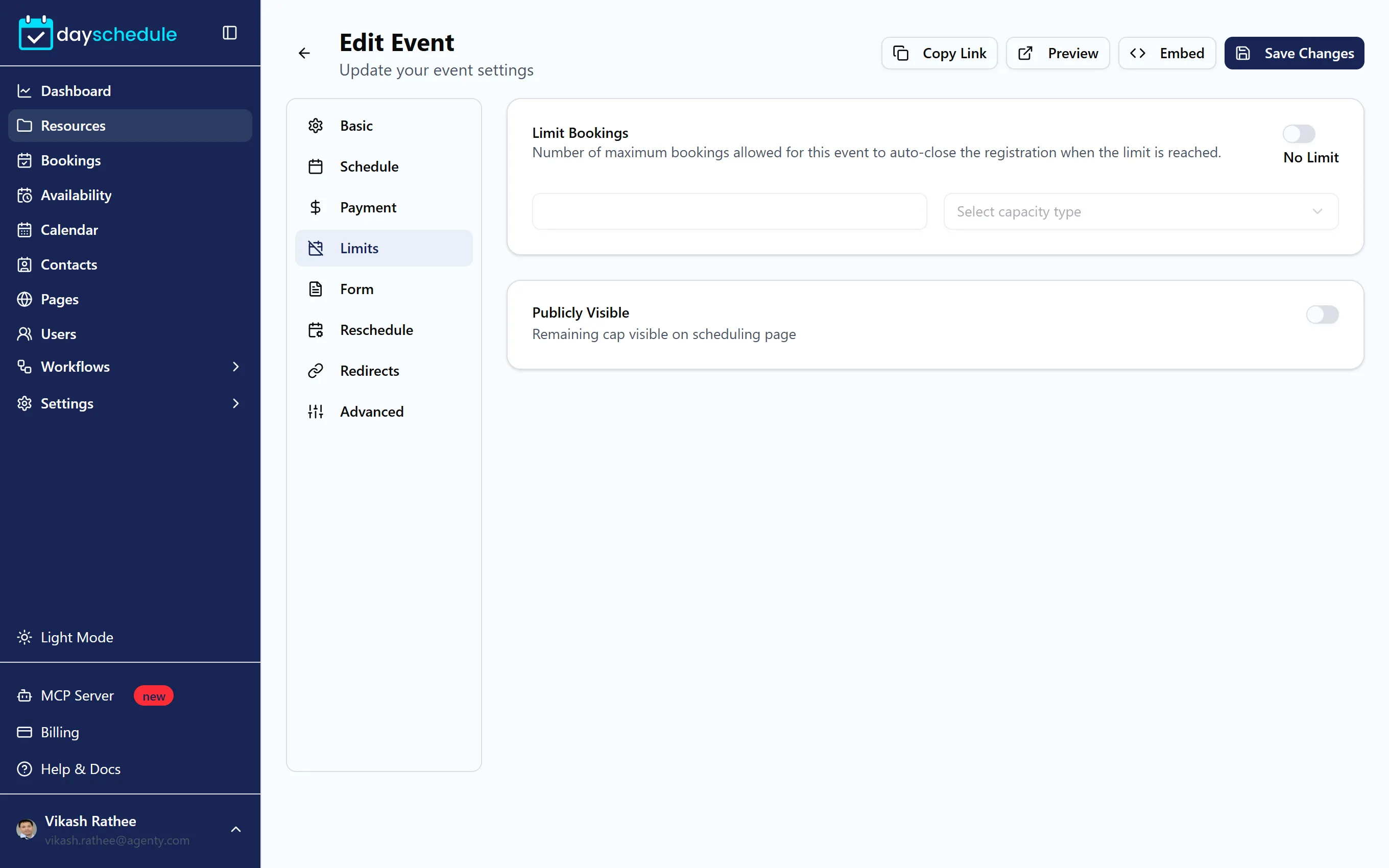
For a group event, the limit is always on and counts seats Per Slot, the number of invitees who can join the same session.
Show the remaining spots
Turn on Publicly Visible to show the remaining count on the booking page, for example "3 spots left". It's useful for limited offers and classes, where knowing that spots are running out helps people decide.
Limit by time instead of by count
The limits above count bookings for one event. To cap how much of your day is booked across all events that share a schedule, set a Daily Limit in minutes on the schedule instead. With 120 minutes, you can take four 30 minute calls or two 1 hour calls a day, whichever events they come from. See Set working hours and date overrides.