
Each person who takes bookings in DaySchedule needs their own user, with their own schedule, calendar connection and booking link. Users belong to your account, so you can see and manage their bookings, put them on round robin events and compare their results. Teams group users, for example by department, location or region.
Invite users
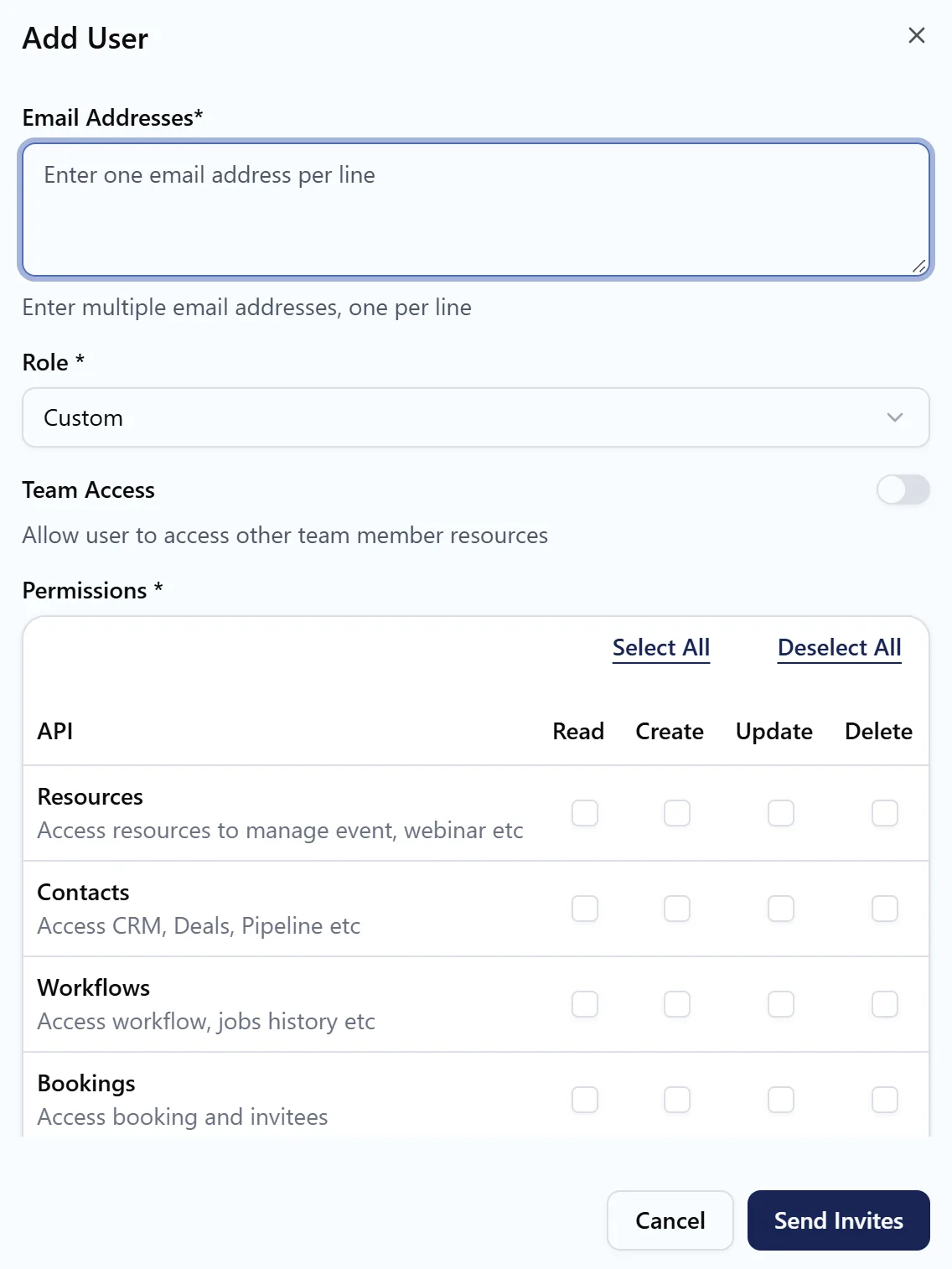
- Open Users and click Add User.
- Under Email Addresses, enter one email per line to invite several people at once.
- Choose a Role.
- Turn on Team Access to let the user see and manage other team members' resources.
- For the Custom role, tick the Permissions the user needs.
- Send the invites.
Each person gets an email invite. Until they accept, use Resend invite from the menu on their row. Every user is a paid seat on paid plans. See Plans, billing and invoices.
Roles and permissions
| Role | Access |
|---|---|
| Owner | Everything, including billing, tags and deleting the account. Usually the person who created the account. |
| Admin | Everything except owner-only settings. |
| Custom | Only the permissions you tick. |
Custom permissions are set per area, each with read, create, update and delete:
- Resources: events, webinars, services and venues.
- Contacts: the CRM.
- Workflows: workflows and run history.
- Bookings: bookings and invitees.
- Users: user management.
- Api Keys: API keys and audit logs, for developers.
Use Select All or Deselect All to set them quickly. A front desk user might get read and create on Bookings and read on Contacts, while a marketer gets read on Contacts and full access to Workflows. Menus the user can't access are hidden from their sidebar.
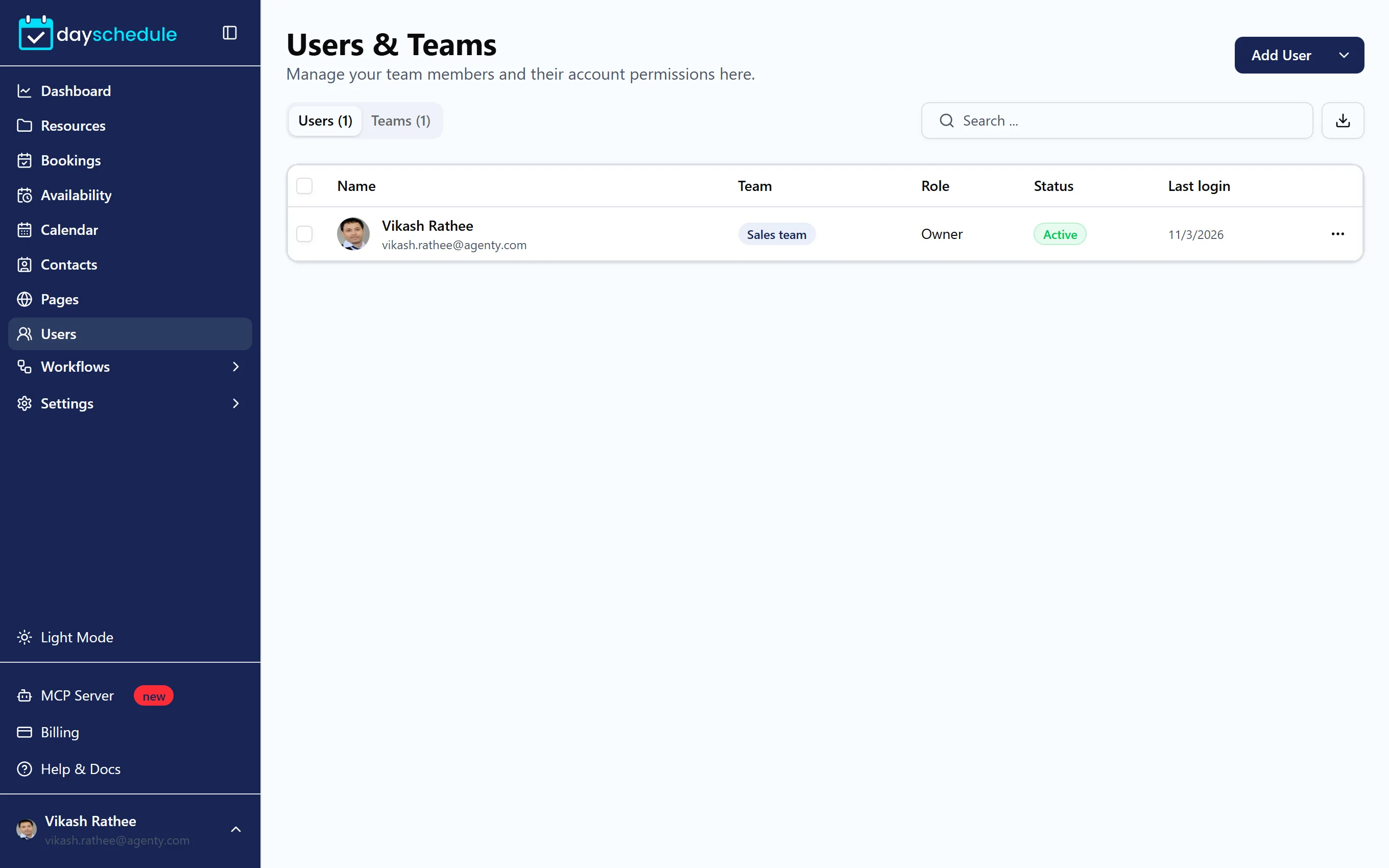
Create teams
- On the Users page, open the arrow next to Add User and choose Add Team.
- Enter a Team Name and Description, and select the Team Members.
- Save the team.
The Teams tab lists your teams with their members. To move people later, select them in the Users tab and click Move to team. Double-click a team to move them instantly, or choose No team (unassign).
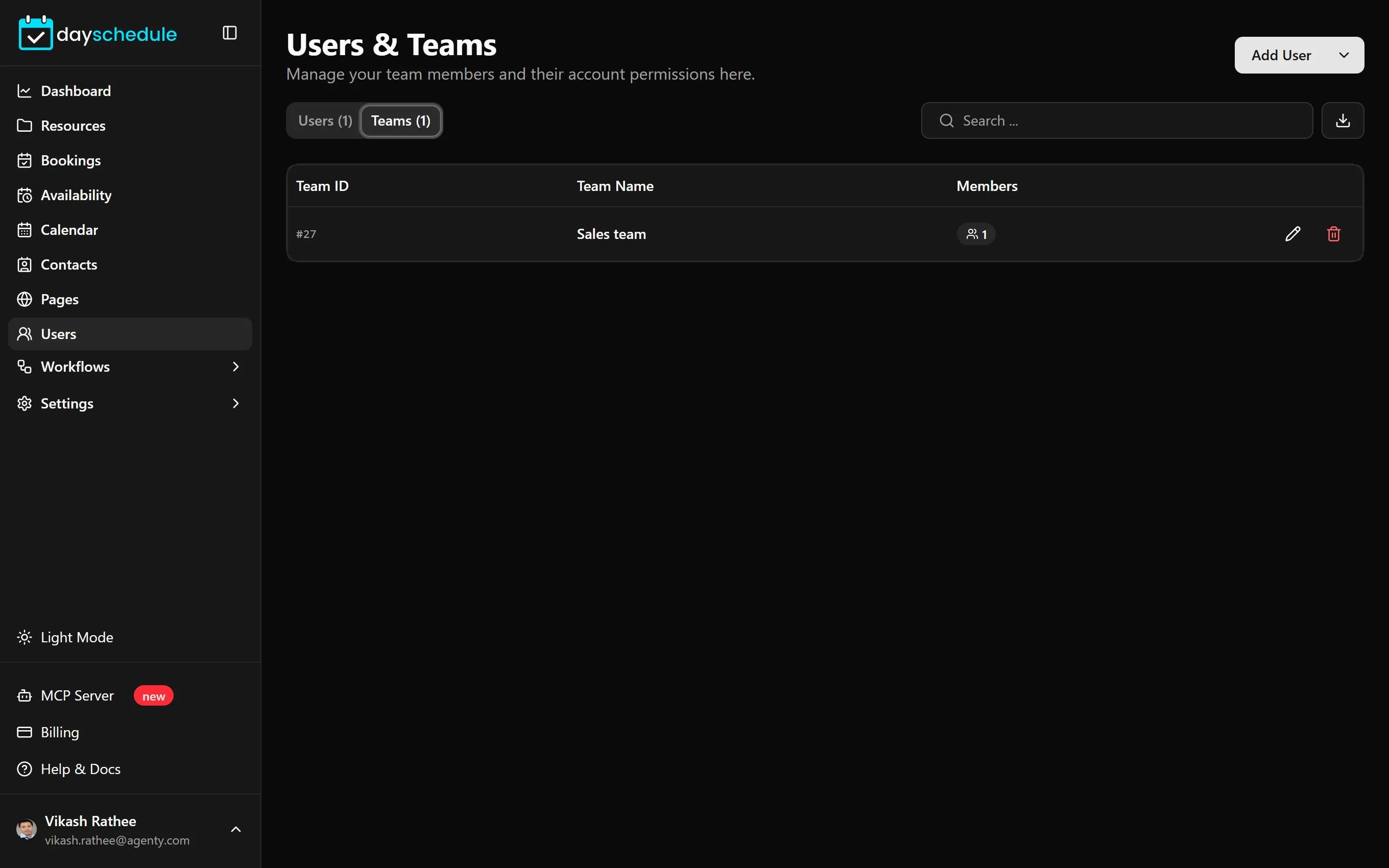
Teams appear when you pick round robin members, in team availability and on the dashboard.
Team management is part of the paid plans. On the free plan, the page shows "Upgrade to Access Team Management".