
Make scenarios can run on every DaySchedule booking. A DaySchedule workflow sends the booking to a Make custom webhook, and the scenario takes it from there: add a row to Google Sheets, create a deal in your CRM, or send a message. Workflows need the Pro plan.
Start a scenario from a booking
- In Make, create a scenario and add the Webhooks module, then Custom webhook. Click Add, name it "DaySchedule bookings" and copy the address.
- Click Run once so Make waits for data.
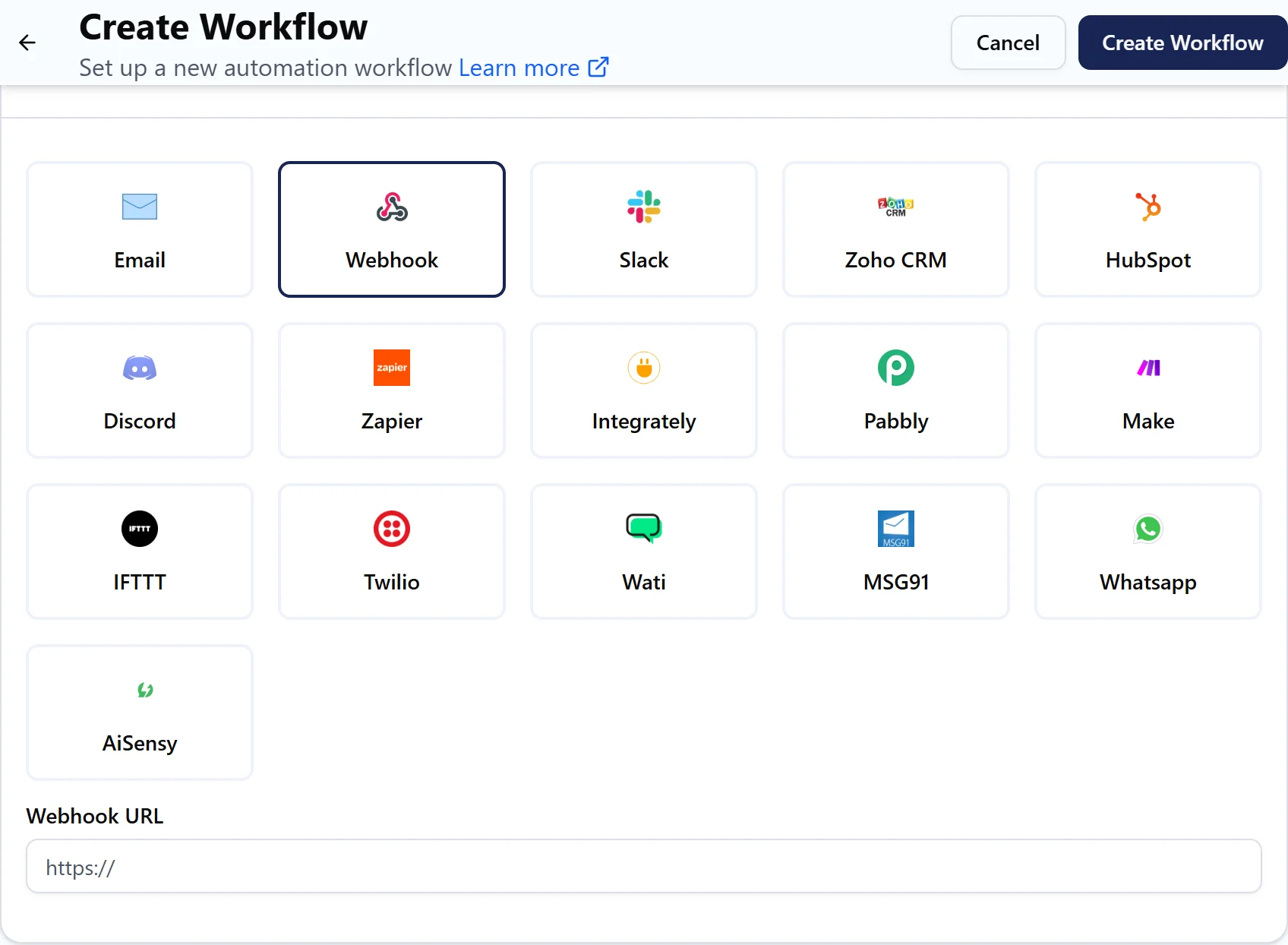
- In DaySchedule, open Workflows and click Create Workflow.
- Enter a Name, choose the resources and set the Trigger, such as Event Scheduled with Run immediately.
- Under the action, select Webhook and paste the Make address into Webhook URL.
- Click Test run. Make receives the sample and learns the data structure.
- Add the next modules in Make, map the booking fields, and turn the scenario on.
- Click Create Workflow in DaySchedule.
The data arrives as two bundles of fields, booking and invitee. Map invitee.name, invitee.email and booking.invitee_time for most uses. The full format is on the n8n page.
To handle cancellations or reschedules differently, create a second DaySchedule workflow with that trigger, pointing at a second webhook or at the same one with a Router filtering on booking.status.
Call the DaySchedule API from Make
Use the HTTP module, then Make a request:
- URL: an endpoint from the API reference, such as
https://api.dayschedule.com/v1/bookings - Headers:
Authorizationwith the valueBearer YOUR_API_KEY
Create the key under Settings, then API Keys. See API keys.