
DaySchedule creates a Microsoft Teams meeting for each booking through your Microsoft 365 account. The Teams link is added to the Outlook calendar event, the invite your invitee receives and the DaySchedule confirmation email.
Connect your Microsoft account
Teams meetings use the same Microsoft connection as the calendar. If you've already connected Office 365 Calendar, skip to the next section.
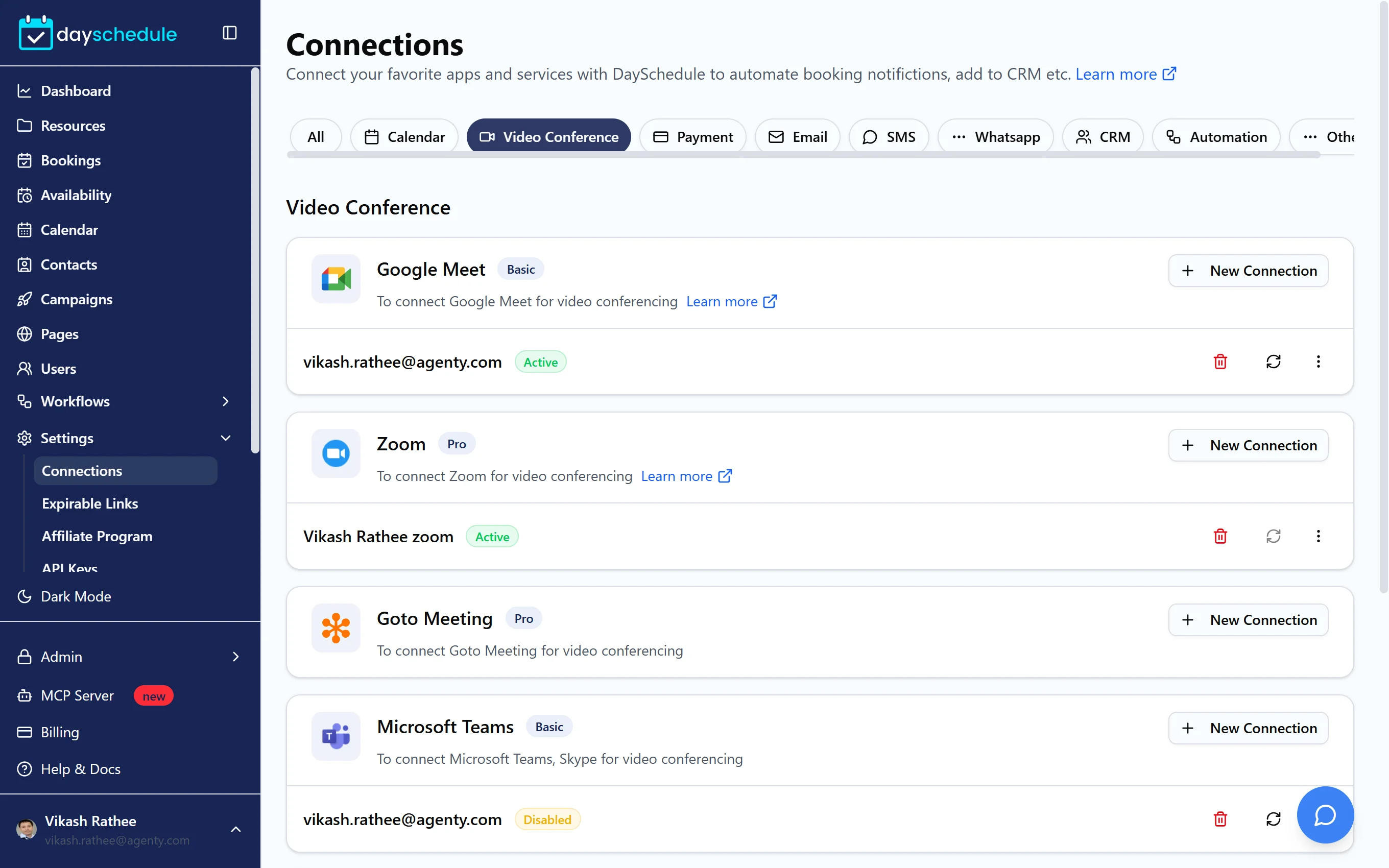
- Open Settings, then Connections, and filter by Video Conference.
- Find Microsoft Teams and click New Connection.
- Sign in with your work or school Microsoft 365 account and accept the permissions.
The connection shows as Active. Microsoft Teams needs the Basic plan or higher.
If Microsoft asks for admin approval, your organization only lets admins approve new apps. Ask your IT admin or Global Administrator to grant consent for DaySchedule in the Microsoft Entra admin center, then connect again.
Teams meeting links need a Microsoft 365 work or school account with a Teams license. Personal Outlook.com and Hotmail accounts can connect the calendar, but may not be able to create Teams meetings.
Use Teams as the event location
- Open the event from Resources.
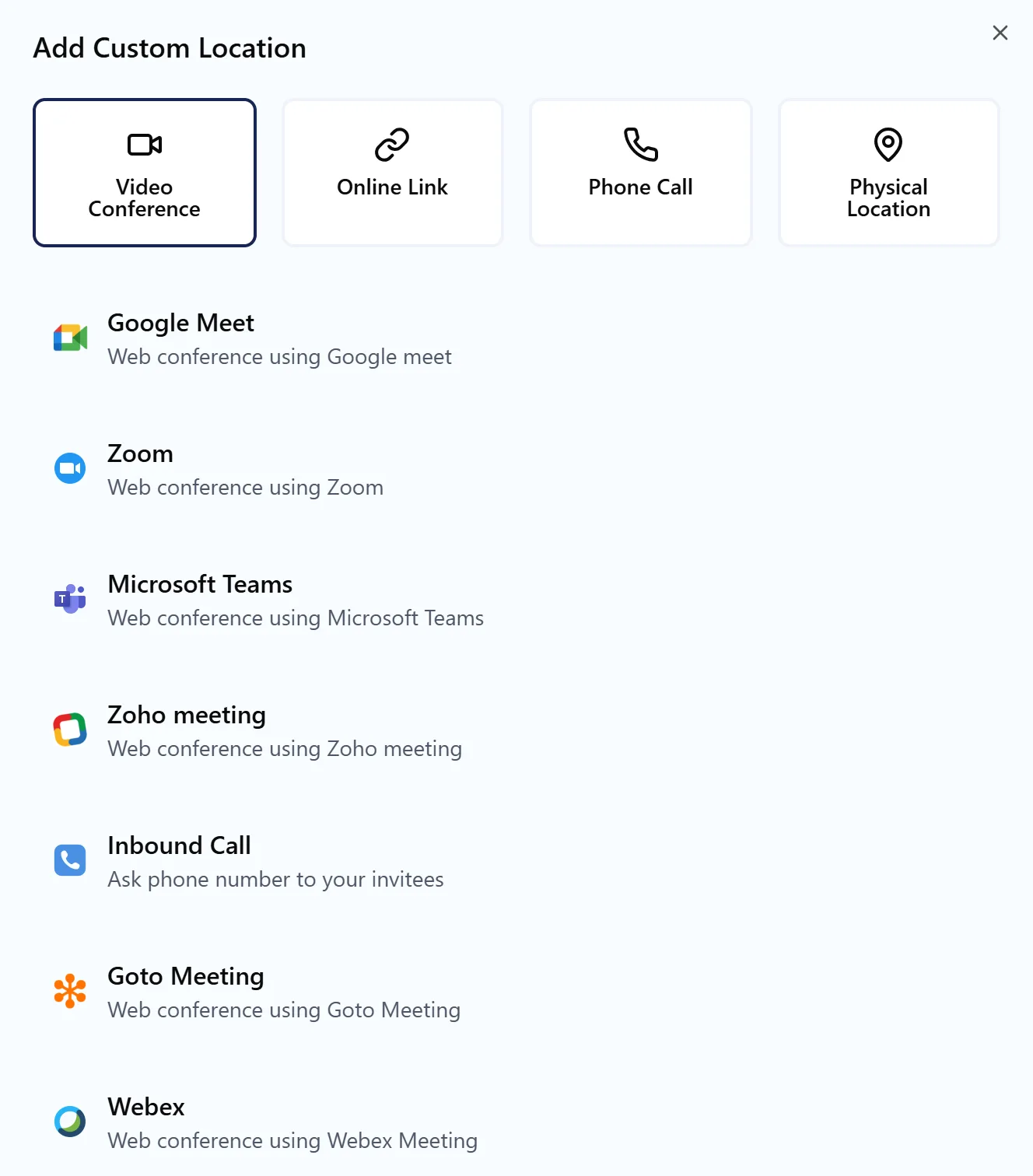
- In the Location card on the Basic tab, click Select a Location.
- Choose Microsoft Teams under Video Conference.
- Click Save Changes.
Every booking for that event now gets its own Teams meeting. The invitee receives the join link by email and in the calendar invite, and you'll find it on the booking in Bookings under Join Meeting. Rescheduling or cancelling the booking updates the Outlook event and its Teams meeting.
Teams for a team
The meeting is created on the account of the host who receives the booking, so each team member connects their own Microsoft account. For round robin events, set Microsoft Teams as each member's location.