
The free DaySchedule plugin adds a [dayschedule] shortcode to WordPress. Put it on any page or post to show your booking calendar inline, or as a button that opens it in a popup. Bookings, payments and reminders run through your DaySchedule account, so there's nothing to configure in WordPress beyond the shortcode.
Install the plugin
- In your WordPress admin, open Plugins and click Add New Plugin.
- Search for "DaySchedule".
- Click Install Now on the DaySchedule plugin, then Activate.
You can also download it from wordpress.org and upload the zip under Plugins, then Add New Plugin, then Upload Plugin.
Embed the calendar on a page
- Copy your booking link. Use your page link, such as
https://acme.dayschedule.com, to list all events, or an event link, such ashttps://acme.dayschedule.com/strategy-call, to open one calendar. See Share your booking link. - Edit the page in WordPress and add a Shortcode block.
- Paste the shortcode with your link:
[dayschedule url="https://acme.dayschedule.com/strategy-call" type="inline"]
- Update or publish the page.
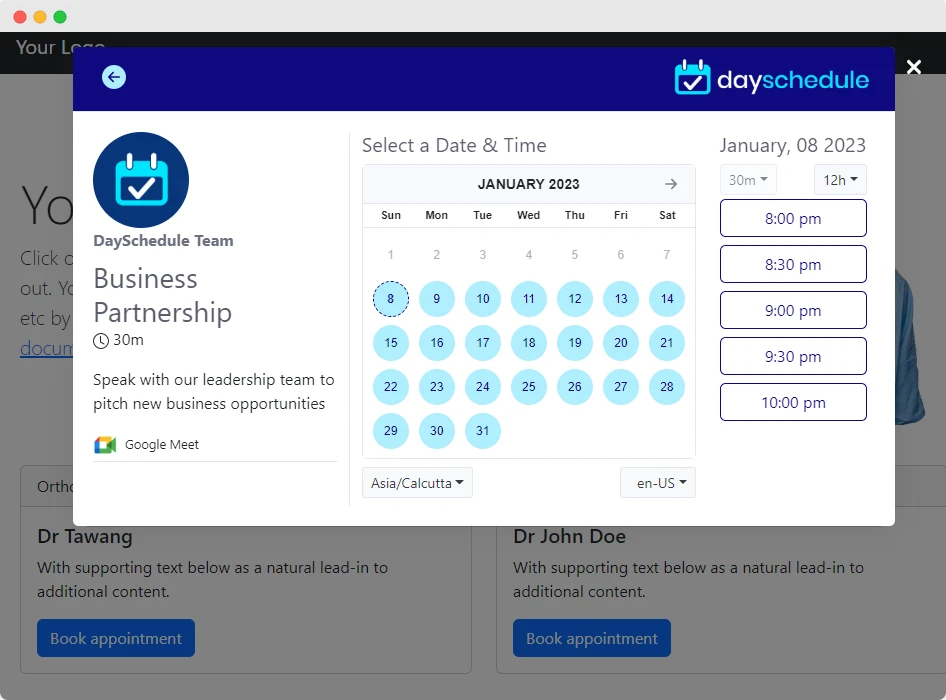
The calendar shows your available slots and the booking form, and works on phones and desktops.
Add a Book appointment button
Use type="popup" to show a button instead. Clicking it opens the calendar in a popup, so it fits in a header, a pricing table or the end of a blog post.
[dayschedule url="https://acme.dayschedule.com" type="popup" text="Book a consultation"]
To reuse the button across pages, save the Shortcode block as a pattern (reusable block).
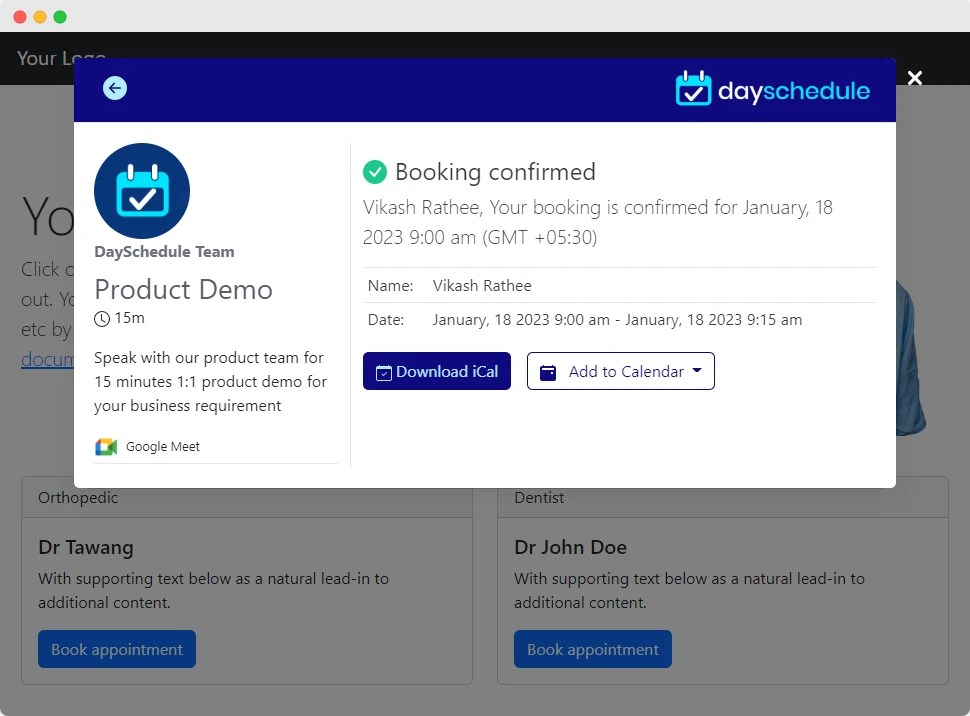
When the invitee books, the popup shows the confirmation with Download iCal and Add to Calendar buttons, so they never leave your site.
Shortcode attributes
| Attribute | What it does | Default |
|---|---|---|
url |
Your booking page or event link | https://meet.dayschedule.com |
type |
inline or popup |
inline |
text |
Button text for the popup type | Book an appointment |
color_primary |
Primary color of the calendar | #0f0980 |
color_secondary |
Secondary color of the calendar | #afeefe |
color_mode |
light, dark or auto |
light |
hide_event |
1 hides the event details panel and shows only the calendar |
0 |
hide_header |
1 hides the header with the logo and back button |
0 |
class |
CSS classes for the popup button | wp-block-button__link |
This shortcode matches the calendar to a brand with a red theme, hides the header and uses your theme's button style:
[dayschedule url="https://acme.dayschedule.com" type="popup" text="Book now" color_primary="#d32f2f" color_secondary="#ffcdd2" hide_header="1" class="wp-block-button__link"]
Page builders
Elementor, Divi, WPBakery and most other builders have a Shortcode widget or module. Drag it onto the page and paste the same shortcode. If a builder has no shortcode element, use an HTML element with the iframe code from Share and embed.
Track bookings from your site
Add UTM parameters to the url attribute, such as ?utm_source=website&utm_medium=pricing-page, to see which page each booking came from under Tracking Details on the booking. See Booking details.