
Zapier connects DaySchedule to apps that don't have a direct integration, such as Google Sheets, Mailchimp, Airtable or your CRM. A typical Zap adds each new booking as a row in a spreadsheet, or a contact in your email marketing tool.
There are two ways to connect. Use the DaySchedule app on Zapier for most Zaps. Use a Zapier webhook from a DaySchedule workflow when you want the full booking data or a trigger the app doesn't have. Both need the Pro plan.
Use the DaySchedule app on Zapier
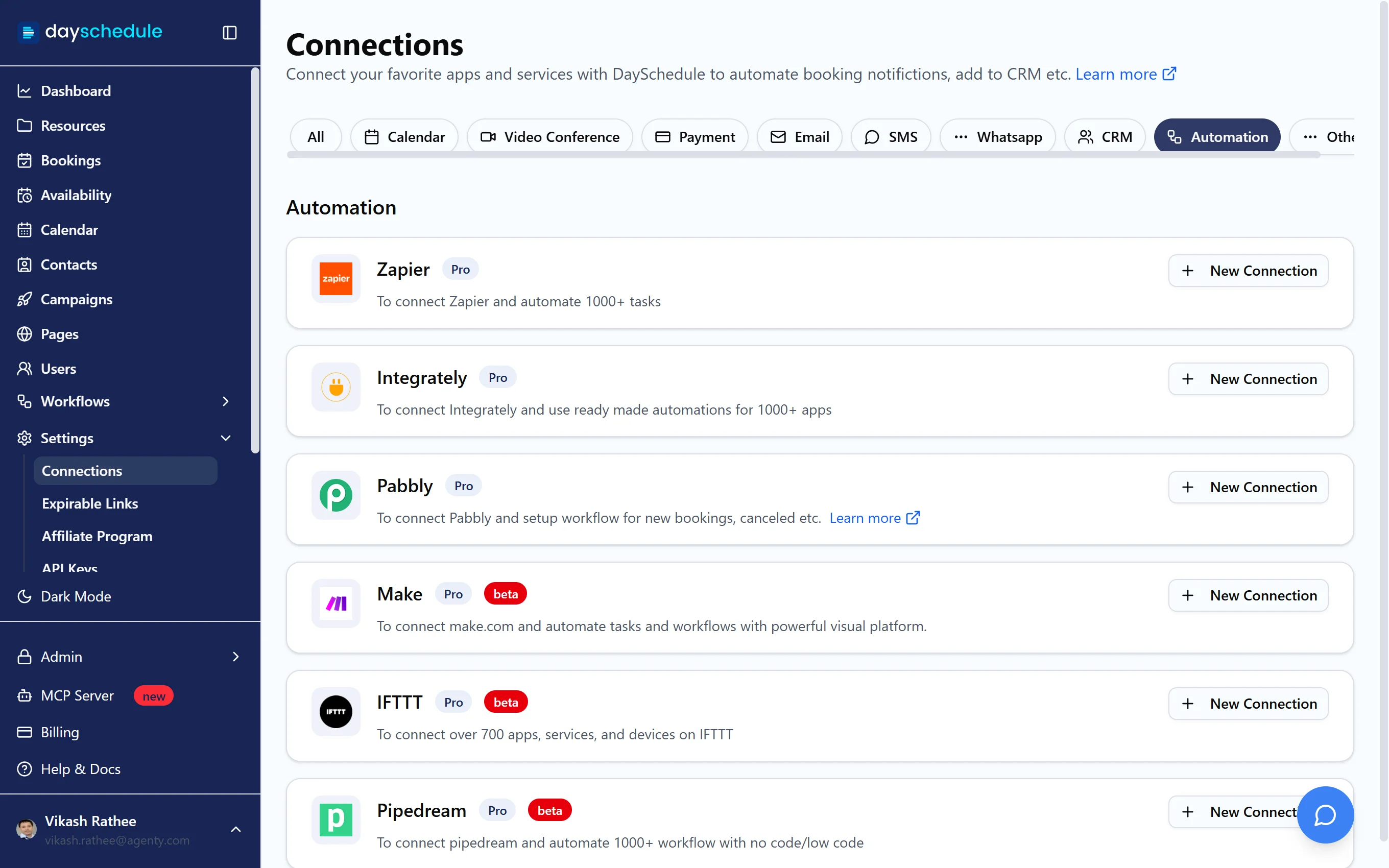
- Open Settings, then Connections, select Automation and click New Connection on Zapier. This opens the DaySchedule app page on Zapier. You can also search for DaySchedule when you create a Zap.
- Create a Zap and choose DaySchedule as the trigger app.
- Pick a trigger event (see below).
- Click Sign in, log in to DaySchedule and click Allow on the consent screen.
- Click Test trigger to pull in a sample booking, then add the action in the other app and map the fields.
- Publish the Zap.
Triggers and actions
| Name | Type | Runs when |
|---|---|---|
| Event Scheduled | Trigger | A new event, webinar or service is booked |
| Before an Event | Trigger | A booking starts within 5 minutes |
| On Event Started | Trigger | A booking's start time arrives |
| On Event End | Trigger | A booking's end time arrives |
| On Event Canceled | Trigger | A booking is cancelled |
| Create Contact | Action | Adds a contact to Contacts in DaySchedule |
When you publish a Zap, Zapier adds a matching workflow to your DaySchedule account. You'll see it on the Workflows page. Leave it on, or the Zap stops receiving bookings. Turning the Zap off removes it again.
Zapier appears under Connected Apps on the OAuth apps page, where you can disconnect it.
Send bookings to a Zapier webhook
A workflow can post each booking to a Zapier "Catch Hook" URL. Use this to run the Zap on a trigger the app doesn't offer, such as Event Rescheduled or 24 hours before an event.
- In Zapier, create a Zap with Webhooks by Zapier as the trigger and choose Catch Hook. Copy the webhook URL.
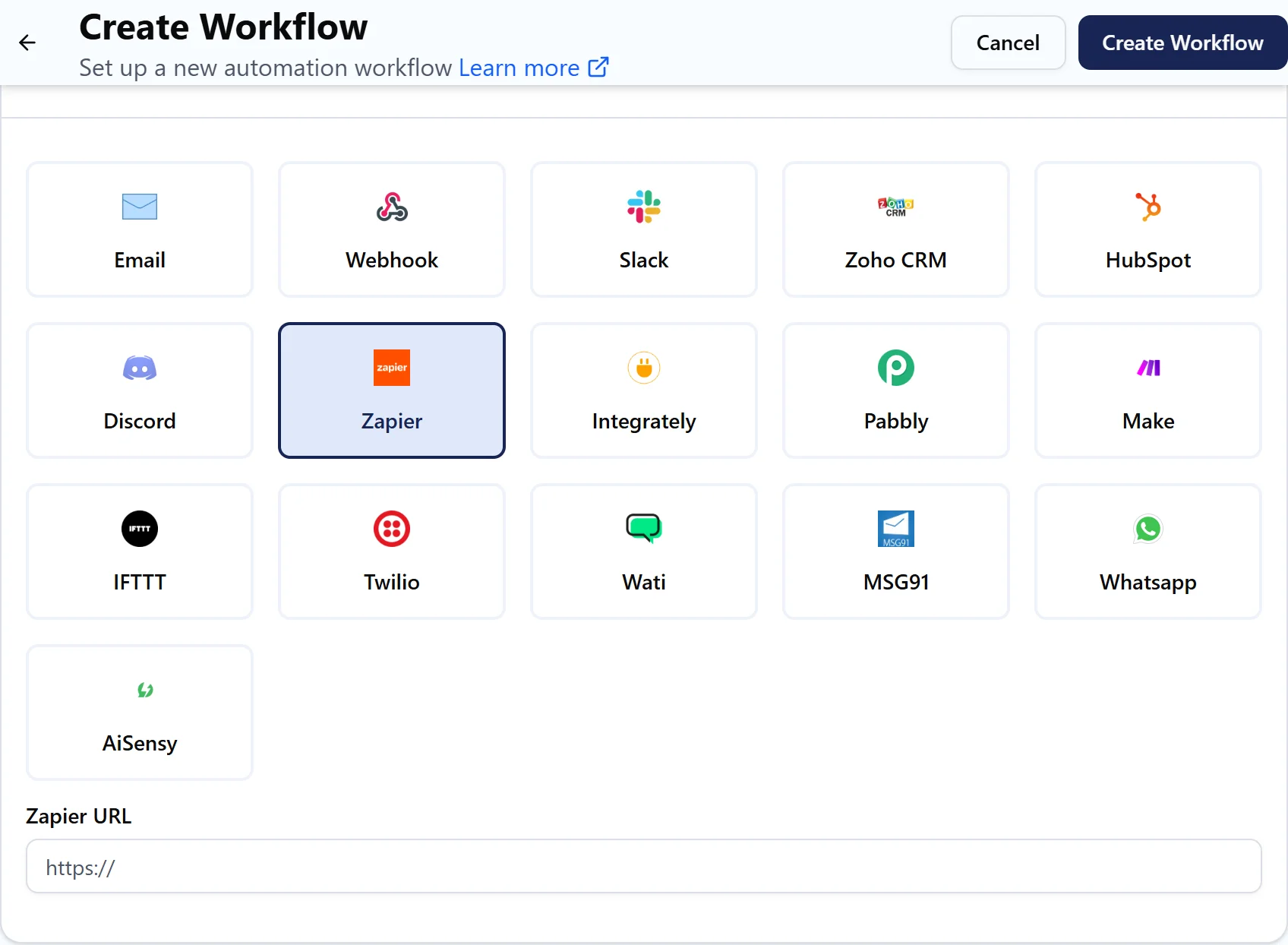
- In DaySchedule, open Workflows and click Create Workflow.
- Enter a Name, choose the resources and set the Trigger, such as Event Rescheduled with Run immediately.
- Under the action, select Zapier and paste the URL into Zapier URL.
- Click Test run so Zapier receives a sample, then Create Workflow.
- Back in Zapier, click Test trigger, finish the Zap and publish it.
The request is a JSON POST with two objects, booking and invitee. See Webhook payload for the main fields.